
Git Worktree Used to Be a Party Trick. Now It's a Cheat Code.
A deep guide to using git worktrees with AI coding agents for parallel development. Learn to run Claude Code, Cursor, and Codex in isolated branches, merge cleanly, and turn weeks of work into days.
Git Worktree Used to Be a Party Trick. Now It’s a Cheat Code.
I have coded in two very different eras. In the first one, I wrote every line myself. In the second one, the one I am in now, I honestly cannot remember the last time I wrote a full function without AI helping me. A lot changed in that shift, but nothing changed more than how I think about git worktree.
Back in the old days, knowing worktree existed made you interesting. Actually knowing how to use it, without setting your repo on fire, made you a legend. The person everyone quietly DMed with git questions.
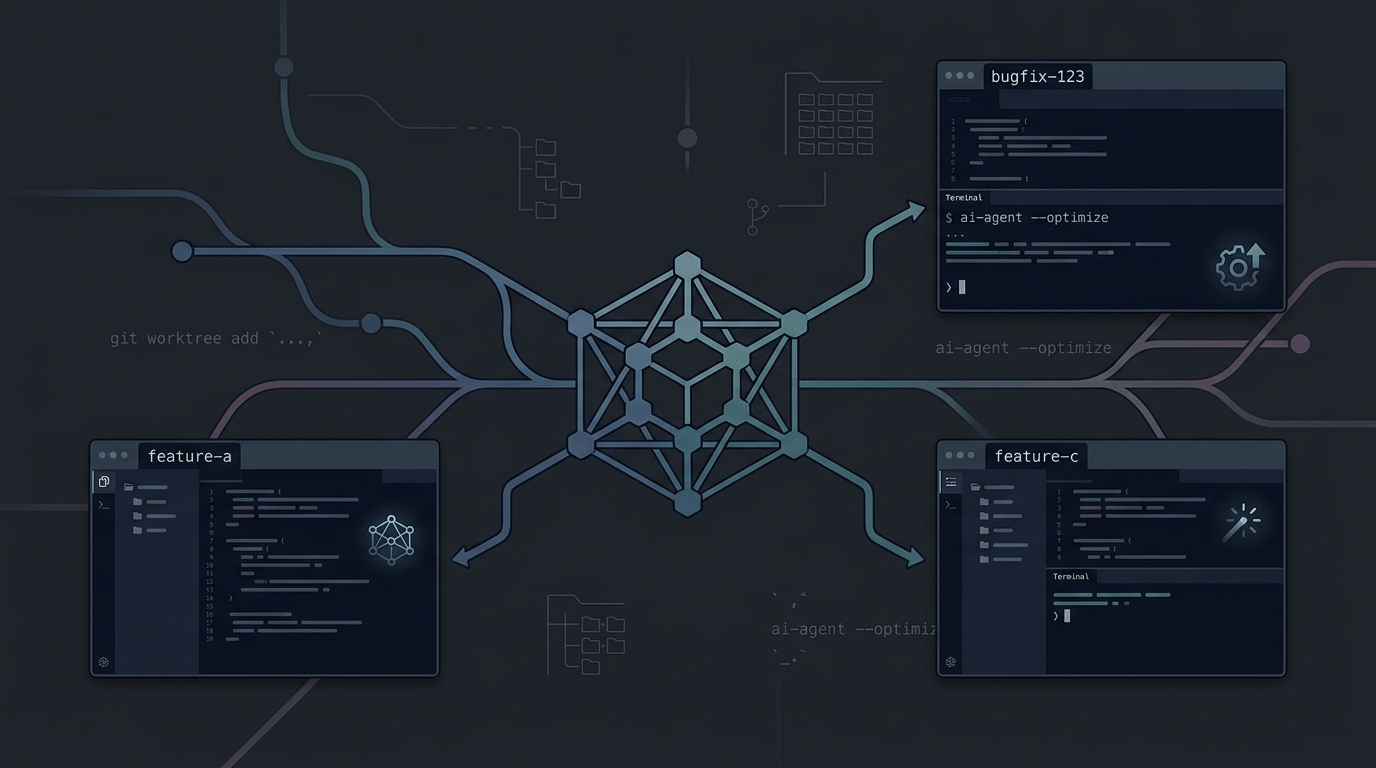
Today the tables have flipped. If you do not know git worktree, you are leaving a huge chunk of AI’s power on the table. And here is the twist: you are probably already using it without realizing it. Claude Code, Codex, and JetBrains Air all use worktrees behind the scenes to run multiple AI agents at once. Once you understand the trick, you can use it on purpose and turn weeks of work into days.
What a Git Worktree Actually Is
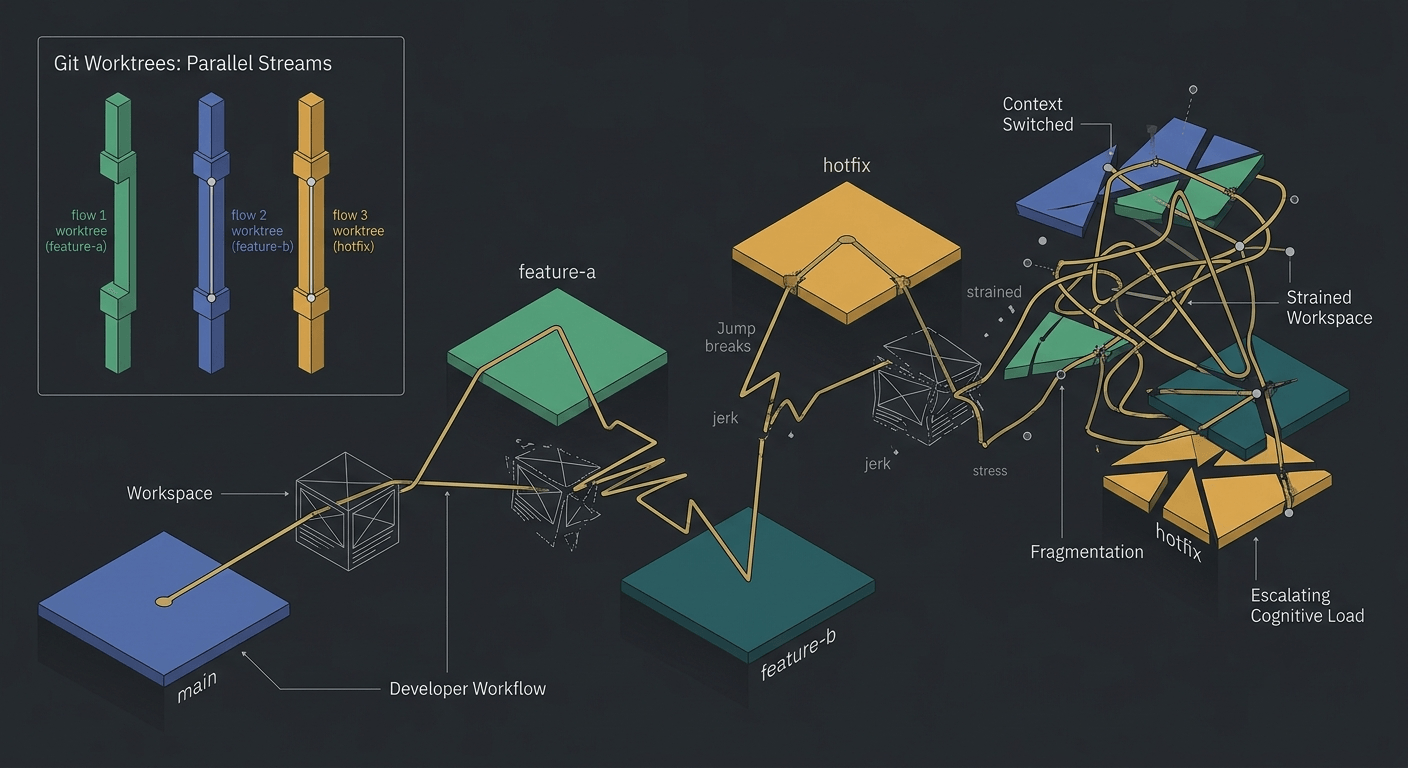
In plain English, a worktree lets you check out a different branch into a different folder, all connected to the same repo.
Instead of one folder tied to one branch, you get several folders, each one fully checked out on its own branch. Create a worktree for feature-a and you get a brand new folder sitting right next to your project, ready to work in. Point an AI agent at it, and it works completely independently of whatever is happening in your other folders.
Each worktree is a fully functional working directory with its own working tree and its own index (staging area). They all share the same object database and the same refs, which is what makes merging trivial.
Why Not Just Copy the Folder Yourself?
You can. But think through what happens next. A manual copy comes with its own full .git history, which means merging turns into pushing to GitHub, opening a PR, and stitching things back together by hand. It also eats disk space fast, and nothing stops you from accidentally checking out the same branch twice in two different places.
Git worktree solves all of that.
| Concern | Manual copy / clone | Git worktree |
|---|---|---|
| Git history | Full duplicate .git per folder | Shared object store, one .git |
| Disk usage | Full repo duplicated each time | Working files only per worktree |
| Merging | Push + PR + manual stitching | Plain git merge from any folder |
| Same branch twice | Possible, silently | Refused by Git, always safe |
| Sync across folders | Separate remotes, manual fetch | One fetch updates all worktrees |
Every worktree shares the same history, so merging is a plain git merge from any folder into any branch, no PR required. Git also will not let you check out a branch that is already active somewhere else, so you are protected from stepping on your own work.
Life Before AI: The Emergency Fix Tool
Even though this is not ancient history, it is worth remembering how worktree used to get used.
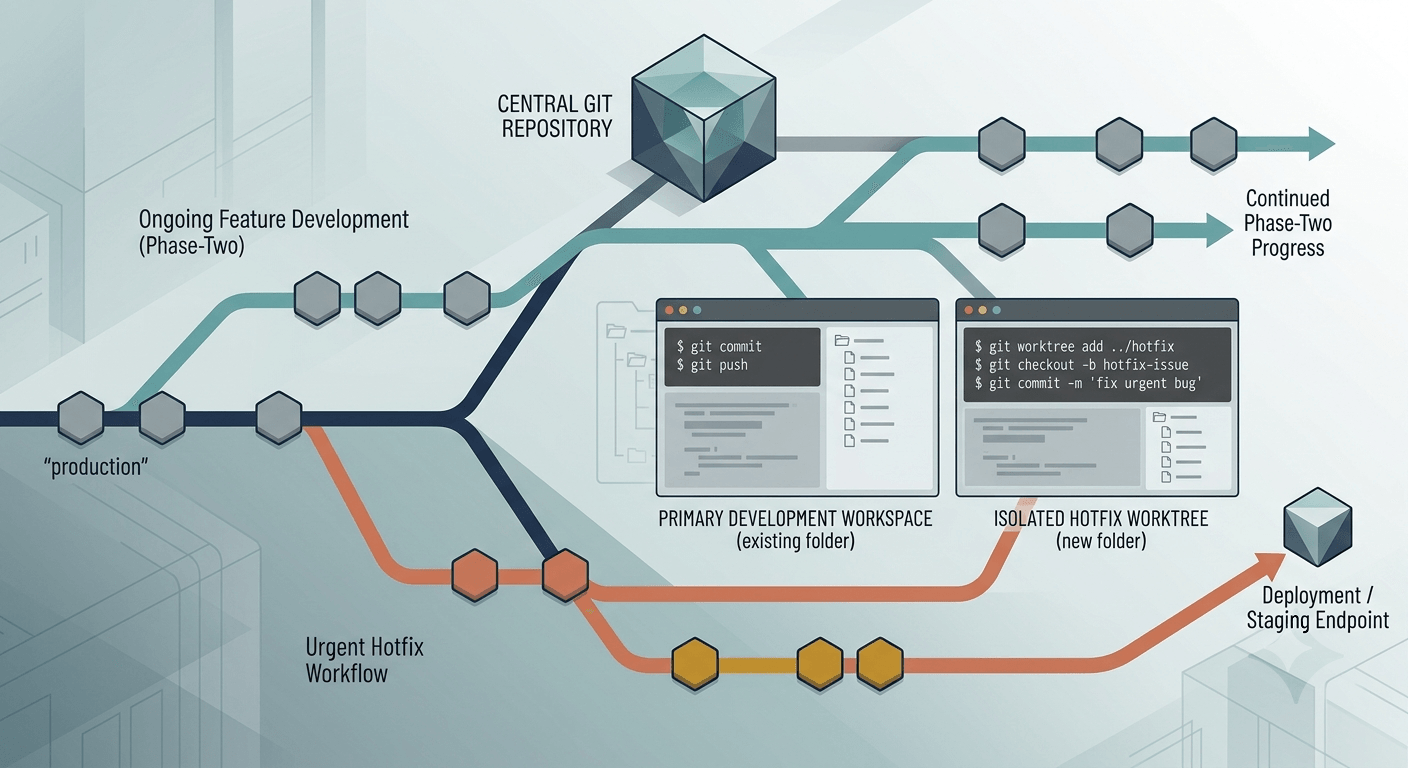
Say you shipped a project, moved on to phase two, and then a client calls with an urgent bug. The old move was to drop everything and switch back to the production branch, losing your train of thought on phase two in the process.
Worktree made that painless. You would spin up a new worktree from production, fix the bug there while phase two kept running untouched, merge it into staging to test, then ship it once it passed.
So why did people not just run every task that way, all the time? Because we are human. Juggling four tasks “at once” usually just means four half finished tasks and one tired brain. That is the one limit AI removed.
Why It Matters So Much More Now
AI does not get tired. It does not need a coffee break. That changes the math completely.
Instead of you being the bottleneck working through tasks one at a time, you can hand several independent tasks to several AI agents, each in its own worktree, each on its own branch, all running at once. You are no longer limited by how much you can focus on. You are limited by how many well scoped, independent tasks you can define. That is the real reason worktree plus AI can turn a month of work into a few days.
| Approach | Context Quality | Safety | Speed | Resource Usage |
|---|---|---|---|---|
| Single branch (stash) | Low: mixed changes | Risky: merge conflicts | Slow: context rebuild | Low: one node_modules |
| Multiple clones | High: clean state | Safe: total isolation | Fast: already set up | High: duplicate deps |
| Git Worktrees | High: per-branch state | Safe: shared objects | Fast: instant checkout | Medium: shared .git |
AI agents produce unpredictable changes. A single session might install new dependencies, modify configuration files, generate thousands of lines of code, or refactor existing code in unexpected ways. Running an AI agent in a worktree gives you zero risk to your main directory, easy review, parallel experiments, and fast discard if it fails.
The Full Git Worktree Reference
Here is every command you need for daily work. This is the whole surface area, and it is small enough to memorize.
| Command | What it does |
|---|---|
| git worktree add <path> <branch> | Check out <branch> into a new folder at <path> |
| git worktree add -b <new> <path> <base> | Create branch <new> from <base> and check it out at <path> |
| git worktree add --detach <path> <commit> | Check out a detached HEAD, useful for review or bisect |
| git worktree add --track -b <new> <path> origin/<new> | Create a worktree that tracks a remote branch |
| git worktree list | Show every worktree and its checked-out branch |
| git worktree remove <path> | Delete a worktree and its folder after merging |
| git worktree prune | Clean stale worktree metadata after folders are removed |
# Add a worktree for a new feature branch
git worktree add ../my-project-feature -b feature/new-thing

# Add a worktree for a hotfix
git worktree add ../my-project-hotfix -b hotfix/critical-bug

# Add a worktree tracking a remote branch
git worktree add --track ../my-project-feature origin/feature/new-thing

# Check out a commit without touching any branch (review or bisect)
git worktree add --detach ../my-project-review v2.4.0

# List all active worktrees
git worktree list

# Remove a worktree when the branch is merged
git worktree remove ../my-project-feature

# Sweep stale metadata for worktrees deleted outside git
git worktree prune
The --detach flag is the answer when you want a second worktree on the same branch: Git refuses to check out one branch twice, so a detached HEAD is how you compare states side by side.
Per-Worktree vs Shared node_modules
Every worktree is a full working tree, which means each one gets its own copy of node_modules when you install. That is clean and safe, but it costs disk and install time per folder. The tradeoff is worth understanding before you spin up five agents at once.
| Strategy | Isolation | Disk cost | Install time | Best for |
|---|---|---|---|---|
| Install per worktree | Full | High with big deps | Slow on first run | Teams, experiments |
| Shared symlinked node_modules | Reduced | Low | One install | Disk constrained machines |
| Shared lockfile + pnpm store | Full | Low | Fast, deduped | pnpm users |
The most common approach is to install per worktree and keep agents on small, dependency stable tasks. If you are tight on space, a shared symlink works fine:
# From the main repo
mkdir -p ../my-project-feature/node_modules

# Symlink the installed deps into a new worktree
ln -s "$(pwd)/node_modules" ../my-project-feature/node_modules

# Verify the symlink resolves before launching an agent
ls ../my-project-feature/node_modules
A shared node_modules breaks if two agents modify package.json in incompatible ways, so keep dependency changes on the main branch and let worktrees stay read only on dependencies. With pnpm, the global content-addressable store gives you full isolation at almost no extra disk cost, which makes it the best default for heavy parallel work.
Let’s Actually Build One
Enough theory. Let us create a worktree from scratch, run two AI sessions in parallel, and merge the results back. You will see the whole loop in under five minutes.
First, create the project folder, move into it, and initialize a fresh repository:
mkdir worktree-demo && cd worktree-demo && git initAdd a README so git has something to track, then make the initial commit. This is the commit every worktree will branch from:
echo "# Worktree Demo" > README.md && git add . && git commit -m "Initial commit"Now create the worktree. This spawns feature-a in a sibling folder on its own branch, leaving your main checkout untouched:
git worktree add ../feature-a -b feature-aCheck your file explorer and you will see a new feature-a folder sitting next to your project, already checked out on its own branch.
Open both folders in your editor and start an AI session in each one. In the main folder, ask it to write an about.md. In feature-a, ask it to write a contact.md. If you do not have an AI assistant handy, OpenCode has a decent free tier, or you can just write the files yourself.
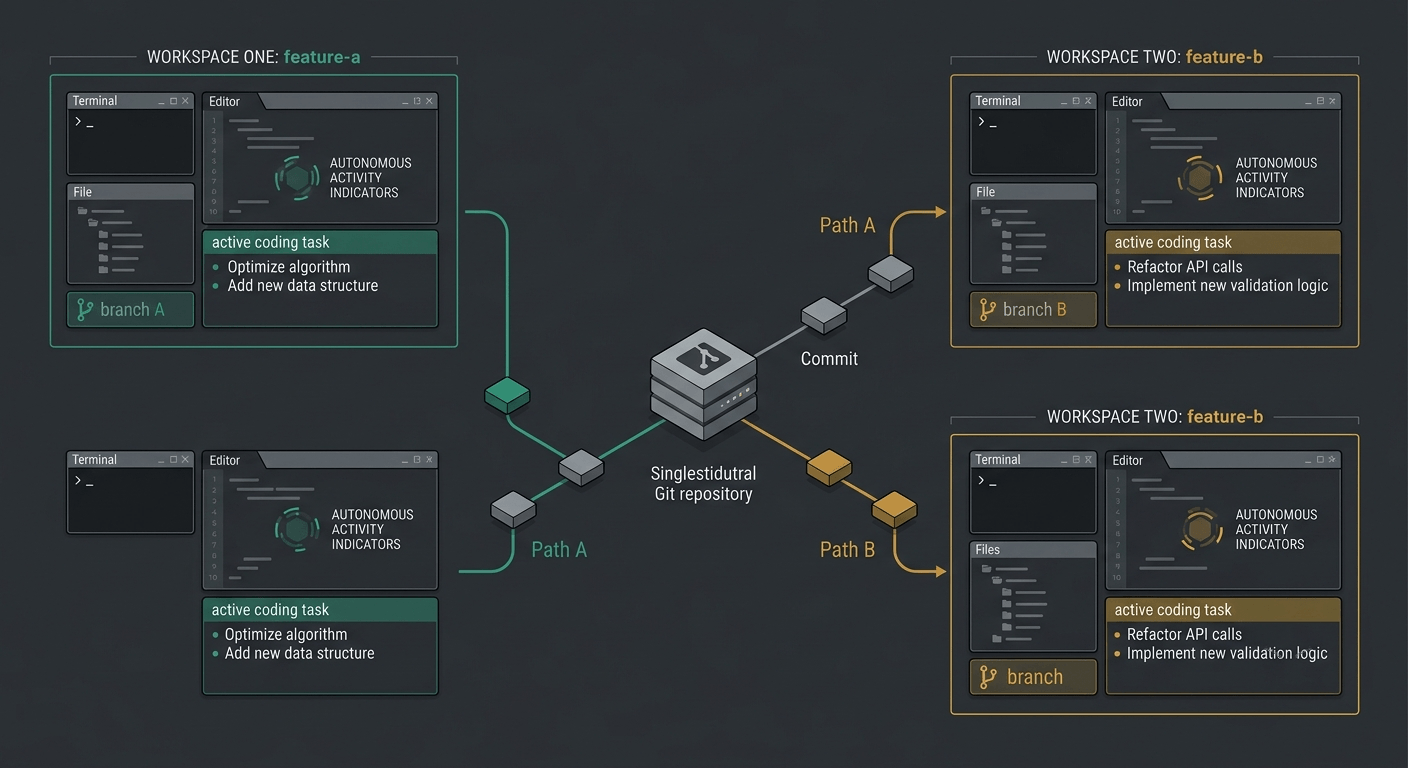
Hop into the feature-a worktree and commit the contact page there. The main folder stays untouched:
cd ../feature-a && git add . && git commit -m "Add contact.md"Back in the main folder, commit the about page in parallel. Two branches, two commits, zero conflicts:
cd ../worktree-demo && git add . && git commit -m "Add about.md"Because both branches share the same history, merging is a single command:
git merge feature-aThe worktree has served its purpose, so delete it and its folder now that it is merged:
git worktree remove ../feature-aThat is the whole trick. Once it clicks, you will wonder how you managed parallel AI tasks without it. Notice that neither session ever touched the other folder, and the merge was a single command because both branches shared the same history.
Using It With Claude Code, Cursor, and Codex
You often do not need to type any of this yourself. The major AI tools build worktree creation right into their interface.
Claude Code supports a --worktree flag that creates an isolated workspace and starts a session inside it, branching from your default remote branch automatically:
# Create a named worktree and start a session in it
claude --worktree feature-auth

# Run several sessions in parallel, each in its own worktree
claude --worktree feature-a &
claude --worktree bugfix-123 &
For subagents, Claude Code supports an isolation: worktree directive, so each parallel subagent invocation gets its own branch and directory automatically.
Cursor has built-in parallel agent support built on git worktrees. Each agent gets an isolated branch, and you can either rely on the built-in flow or set up manual worktrees for full control.
Codex runs background work on dedicated worktrees so automations never conflict with your ongoing work. You start a thread on a worktree, and it stays there until you hand it back to your local checkout.
OpenCode leverages worktrees for multi-session parallel development, letting each session work on a different task in its own folder.
The mechanic underneath is the same everywhere: one task, one branch, one folder, one agent doing its own thing. The GUI tools just automate the ceremony.
The Real Reason This Matters
I have seen plenty of developers run multiple AI tasks in the same branch, no worktree, no folder copy, nothing. It is a common habit. Ask them why, and the answer is usually “why bother with branches when I can just do it all in one place?”
Here is the problem with that. Say you are working on feature-a, feature-b, and feature-c, all in one branch. The AI nails the first two and completely botches the third. Now you want to keep the good work and drop the bad. There is no clean way to do that when everything is tangled together in one branch. Your only real option is burning more tokens asking the AI to carefully undo just the broken part, and hoping it does not make things worse.
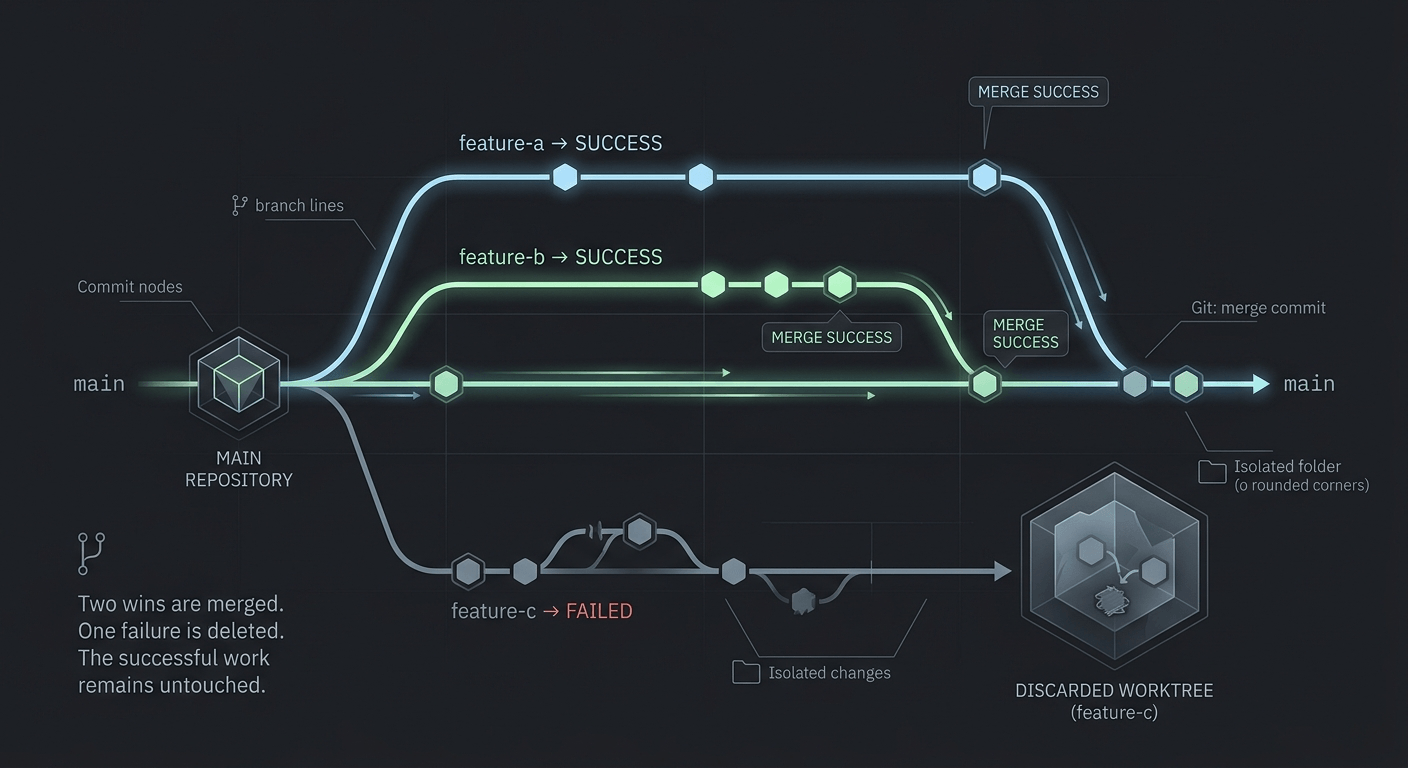
With worktrees, this never happens. Each feature lives in its own branch and folder. If one goes badly, you delete that worktree and move on, no wasted tokens, no risk to the work that actually succeeded.
Sandboxing and Review Workflow
Parallel agents produce value only if you can integrate their output cleanly. A little structure turns chaos into a repeatable pipeline.
# 1. Run per-branch checks before merging anything
cd ../feature-a
npm run lint && npm run test && npm run build

# 2. Merge to staging first, test as a whole
git checkout main
git merge feature-a
git push origin main:staging

# 3. After staging passes, ship to production
git push origin main:production
The same isolation that helps you locally also helps your CI. Worktree based parallel CI can cut total build time dramatically, because branches build concurrently instead of one after another.
| Stage | Where | What to check |
|---|---|---|
| Feature branch | Each worktree | Lint, unit tests, build pass |
| Staging merge | Integrated branch | Cross-feature integration, e2e tests |
| Production | Ship branch | Final smoke test, rollback plan |
Two more habits keep the loop tight:
- Focused PRs. One worktree, one branch, one PR. Reviewers see a small, self contained diff instead of a 40 file monster.
- Incremental commits. Tell agents to commit after each discrete task. Checkpoints make it trivial to cherry pick the good work and abandon the rest.
Common Pitfalls and How to Avoid Them
The combination of git worktree and AI is powerful, but it still depends on how you use it. Two factors decide how good you are at it and how long you can keep it up.
1. Keep Your Parallel Tasks Independent
If one task quietly depends on another, you are just setting up a pile of merge conflicts for later. Split work by domain or feature boundary, not by file. Avoid assigning two agents to edit the same utility module from different directions. Pre-flight conflict checks with git merge-tree before dispatching long running agents can save a whole afternoon.
2. Do Not Run More Tasks Than You Can Track
The AI will not get tired, but you still have to review and merge everything it produces. Start with two or three tasks, get comfortable, then scale up from there. Running eight agents at once usually means eight diffs you do not fully understand.
3. Prune Stale Worktrees
Worktrees do not clean themselves up. If you delete the folder without telling git, git worktree list keeps showing a stale entry. Run git worktree prune after manual deletions, and make removal part of the workflow after every merge.
4. Watch Remote Tracking
A worktree does not magically know about new remote branches. Use --track or set git config worktree.guessRemote true so git worktree add can match remote branches. Otherwise you will hit confusing “no such branch” errors when pulling fresh branches.
5. Same Branch Checkout Is Refused
Git refuses to check out the same branch in two worktrees at once. That is a feature, not a bug: it prevents two agents from committing to the same branch and corrupting it. If you need the same branch twice, use a detached HEAD in the second worktree.
6. Git GC and Shared Objects
Because all worktrees share the object store, a single git gc run handles everything. Run maintenance from any worktree and the whole repo benefits. Just do not run aggressive gc while agents are actively committing; it can slow things down and occasionally prune things mid commit.
| Pitfall | Symptom | Fix |
|---|---|---|
| Stale worktrees | git worktree list shows deleted folders | git worktree prune |
| Missing remote branch | no such branch on add | Use --track or worktree.guessRemote |
| Same branch twice | branch already checked out | Add a second worktree with --detach |
| Dependent tasks | Merge conflict explosion | Split by domain, run merge-tree first |
| Too many agents | Unreviewable diffs | Start with 2-3 tasks, scale slowly |
Give It a Try
Next time you fire up an AI coding assistant, create a worktree first. It takes ten seconds and saves hours of cleanup.
# One-liner to create and open a worktree for AI work
git worktree add ../experiment-ai -b feature/ai-experiment && \
  code ../experiment-ai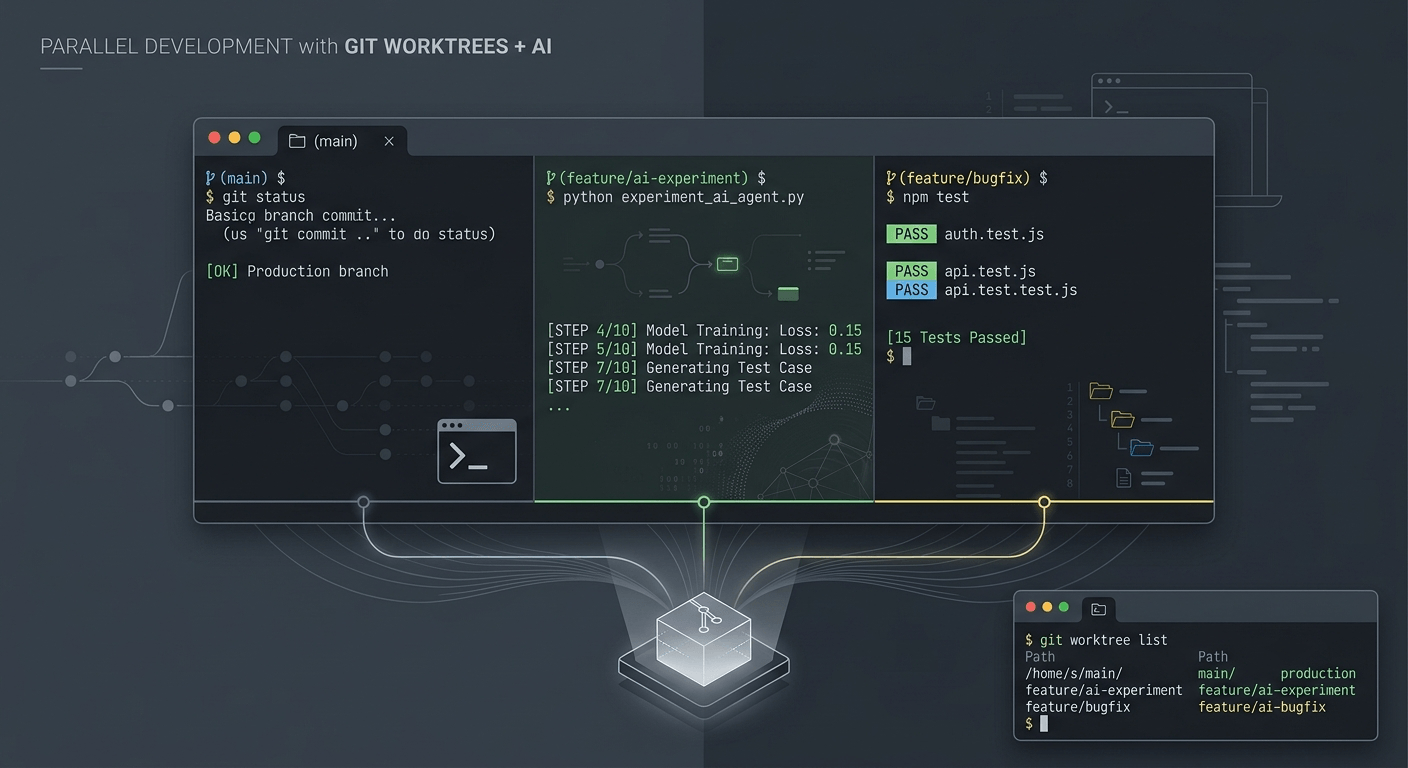
Get the two golden rules right, independent tasks and a task count you can track, and git worktree stops being a nice trick and becomes how you actually build with AI, every day. Your future self, the one not dealing with merge conflicts, will thank you.